TrueVAULT Integration
Requires TrueVAULT
This workflow depends on TrueVAULT being installed and configured already. TrueTERRAIN does not include the store, syncing, or download system by itself.
TrueVAULT integration lets TrueTERRAIN discover the assets you own, show them inside supported pickers, and download them the first time you use them.
What this integration does
- Syncs your purchased TrueVAULT library into TrueTERRAIN.
- Adds a Vault tab in supported asset pickers.
- Downloads assets on demand when you choose something you have not downloaded yet.
- Lets compatible purchased assets appear in relevant preset workflows.
- Opens the TrueVAULT store from inside supported TrueTERRAIN pickers.
Note
This feature is about access and delivery. Once an asset is downloaded, TrueTERRAIN uses it like normal local content.
Before you begin
Make sure all of the following are true before troubleshooting the integration itself:
- TrueVAULT is installed and working.
- TrueTERRAIN can see the TrueVAULT integration settings in Preferences.
- You have completed any account-link or setup prompts shown in the preferences panel in the TrueVAULT Integration section.
- You have run Sync at least once to fetch your purchases.

The TrueVAULT Integration area in TrueTERRAIN preferences is where you complete setup and manually sync your library.
Setup
- Open TrueTERRAIN Preferences.
- Scroll to the TrueVAULT Integration section.
- Complete any setup instructions shown there so TrueVAULT is linked correctly.
- Click Sync.
Tip
Run Sync again any time you buy new assets or if your Vault lists look outdated.
Where Vault assets appear
After setup, any place that normally works with installable TrueTERRAIN assets can expose a Vault section or Vault tab.
Common areas include:
- Geometry asset pickers such as height map selection.
- Materials pickers such as texture selection.
- Scatter object pickers.
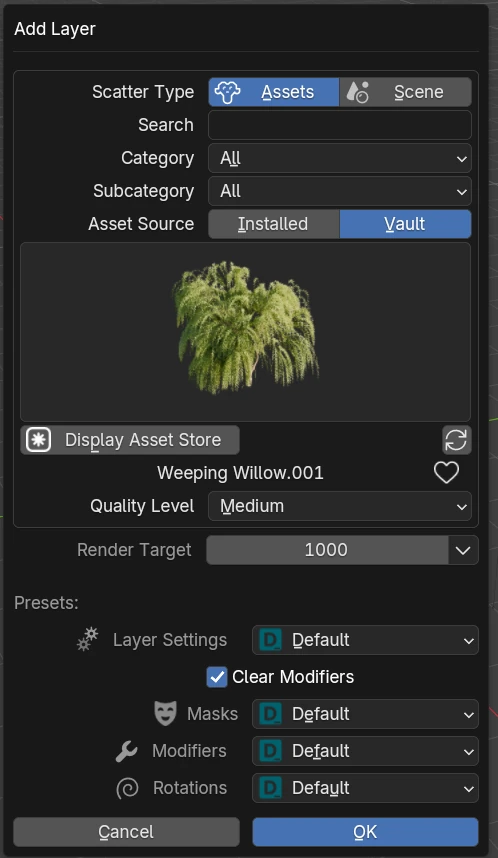
When the integration is active, supported pickers can show a Vault area alongside locally available content.
Typical workflow
- Open a supported picker in Geometry, Materials, or Scatter.
- Switch to the Vault tab if local assets are currently shown instead.
- Choose the asset you want.
- If that asset has not been downloaded before, TrueTERRAIN downloads it automatically and then continues using it.
- Open a supported picker.
- Click Display Asset Store.
- Buy the asset in the TrueVAULT store view.
- Return to TrueTERRAIN with Go Back.
- Click Sync so the new purchase is added to your library.
- Open the Vault tab and use the newly purchased asset.
If a preset is compatible with assets you own through TrueVAULT, it should become available through the normal preset flow after your library has been synced.
Store access inside TrueTERRAIN
The Display Asset Store button opens the TrueVAULT storefront from within supported asset-selection panels. This is useful when you know you need a missing asset and want to purchase it without leaving the addon workflow.
Returning from the store
After browsing or purchasing, use the Go Back button at the top of the store view to return to the previous TrueTERRAIN panel.
Troubleshooting
I do not see any Vault assets
Check the following in order:
- Confirm TrueVAULT itself is installed and working.
- Open Preferences and verify the TrueVAULT Integration section is present.
- Run Sync again.
- In the picker you are testing, make sure you actually switched to the Vault tab.
My purchase is missing after I bought it
Usually the library just needs to be refreshed:
- Return from the store using Go Back.
- Click Sync or Fetch Purchased Assets.
- Reopen the picker if the list does not refresh immediately.
Icons or previews are missing
Missing thumbnails are often resolved by refreshing the Vault data:
- Open the relevant picker.
- Switch to Vault.
- Run Sync again from preferences.
I selected an asset and nothing was downloaded
First confirm the asset is actually selected from Vault and not from a local list. If it still does not download, resync your purchases and try again from the same picker.